Add New Beer
This page will walk you through adding a new beer to the site.
Step 1 — Go to the Add New Beer page
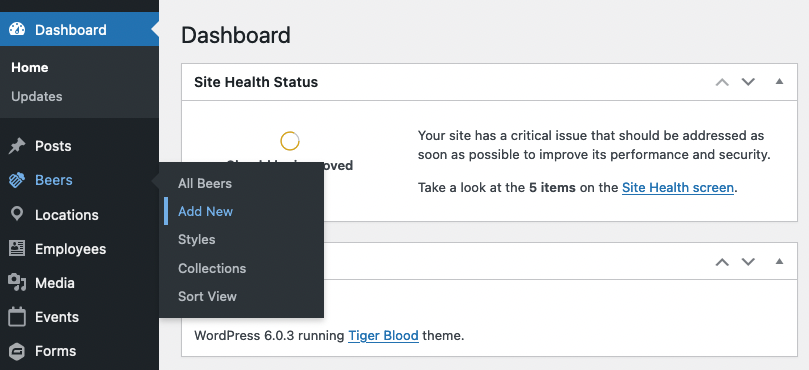
In the Dashboard, click on the Beers menu item. Then click on the Add New button.
Step 2 — Add the beer details
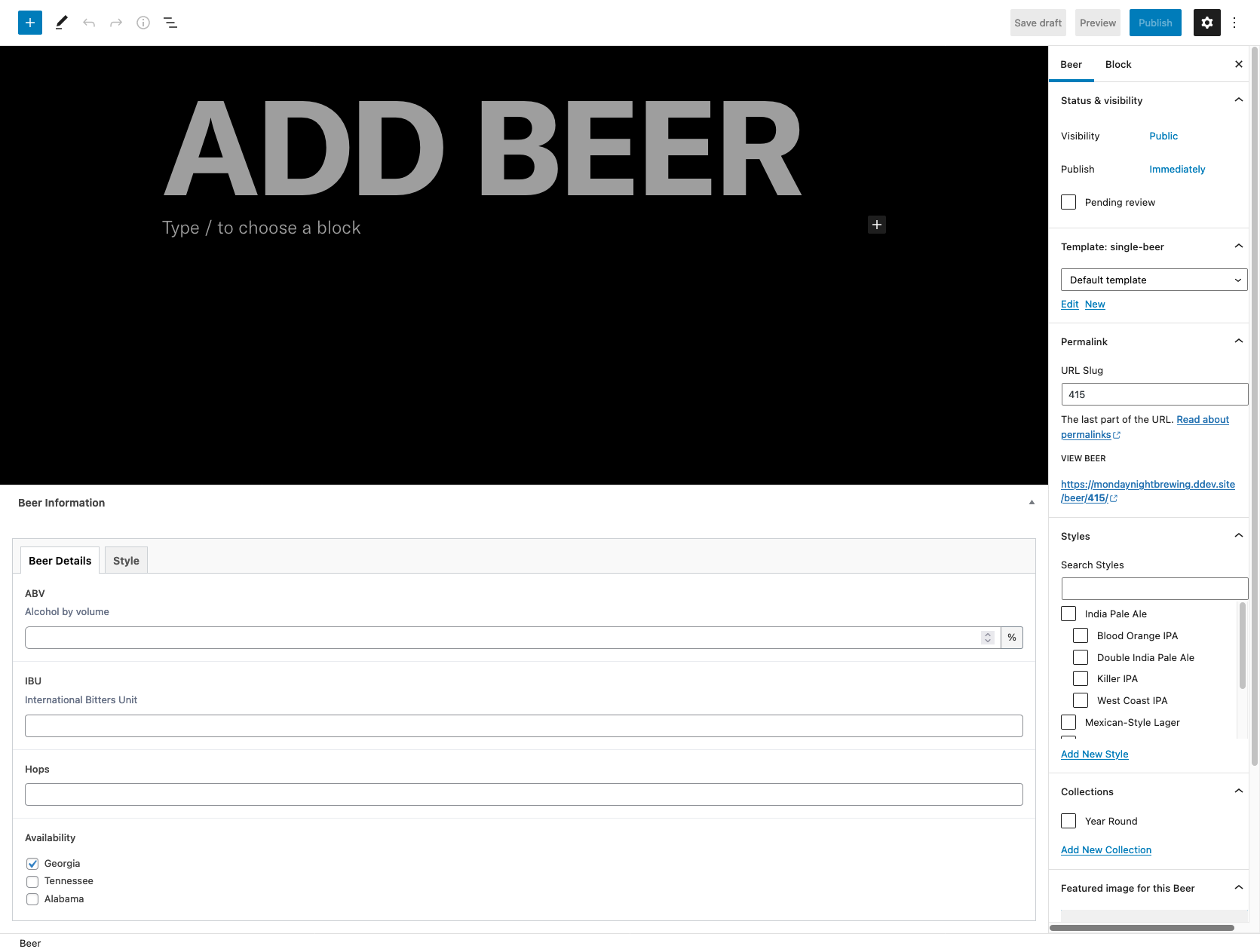
Fill in the details of the beer you want to add.
Beer Title and Description
- ADD BEER — field for the distinct name of the beer.
- Type / to choose a block — field for the description of the beer.
Beer Details
- ABV — field for the alcohol by volume of the beer represented as a number excluding the percent sign.
- IBU — field for the International Bitterness Units of the beer represented as a number.
- Hops — field for the hops used in the beer. You can add multiple hops by separating them with a comma. For example,
Columbus, Centennial, Cascade. - Availability — field for the locational availability of the beer. You can select multiple availability options by checking the checkboxes.
Style
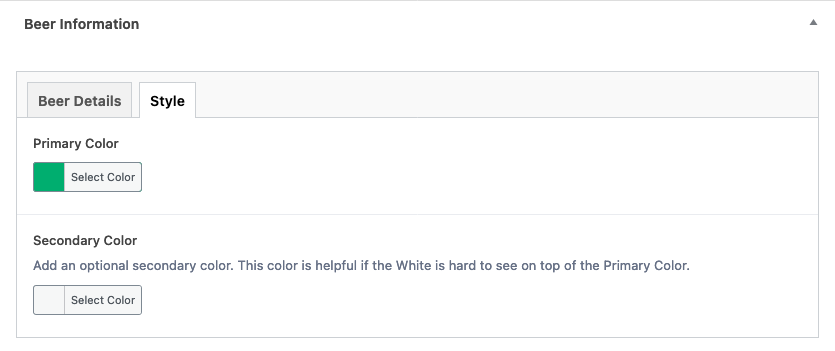
The Style tab located in the Beer Information section is a way to add a primary and secondary color. The primary color should be the hex code used on the label of the beer. The secondary color is optional and should only be used when the primary color is not enough to represent the beer or helps with the readability of the text.
Taxonomies
- Styles — field for the style of the beer. Select only the child style of the beer. For example, if the beer is an
IPA, selectDouble IPAand notIPA. This will categorize the beer under theIPAstyle as well as theDouble IPAstyle. - Collections — field for organizing the separate collections of the beer. For example: Year Round, Seasonal, Black Tie, etc.
Step 3 — Add the beer image
The Featured Image is the image that will be used for the beer can. Click on the Set Featured Image button to add the image. The image will be cropped to various sizes but specifically to 285px wide. Make sure to use the proper PSD template for the beer can.
The PSD templates can be found in the below:
We can add a link to each can type here.
Step 4 — Publish the beer
Once you have added all the details, click on the Publish button to publish the beer.
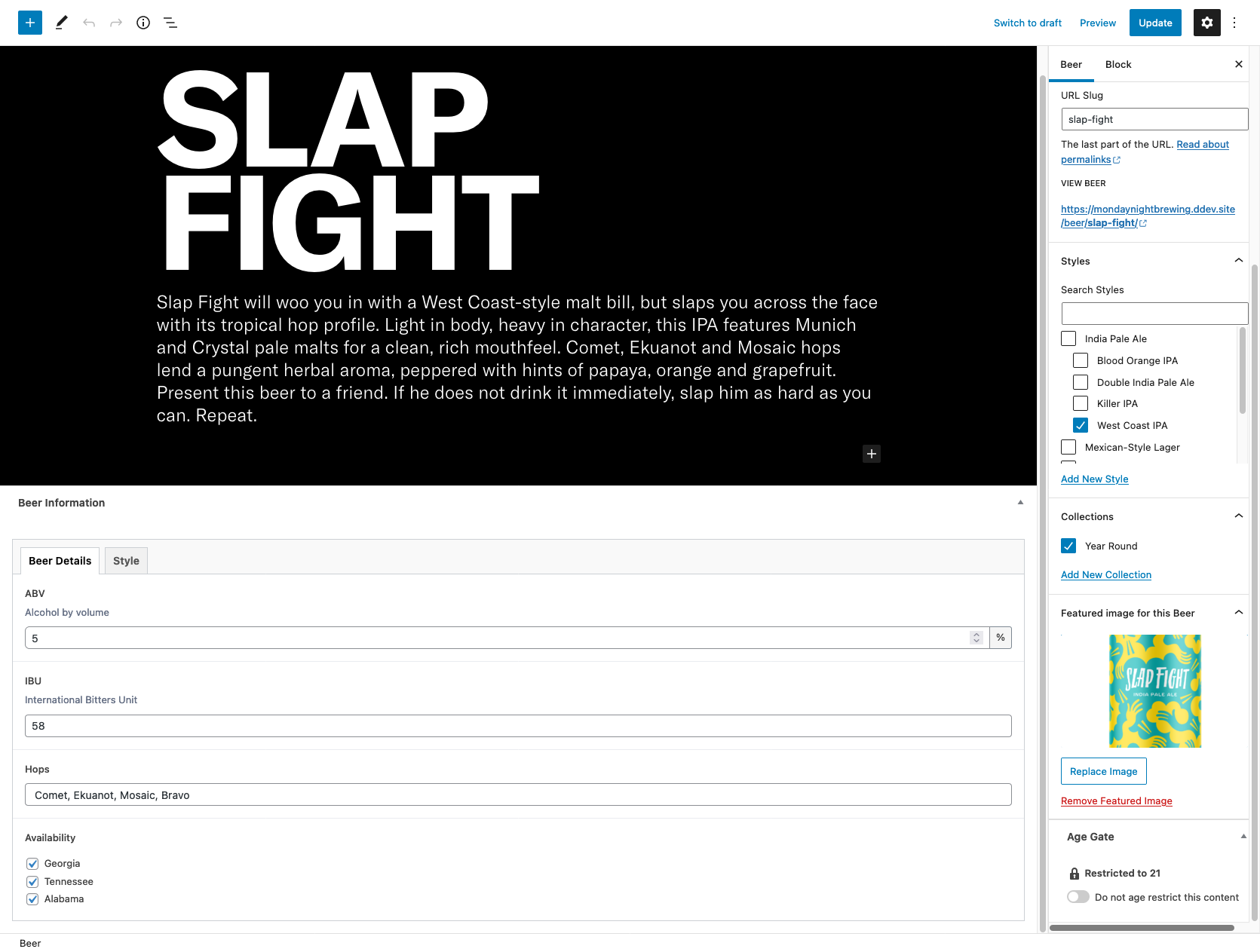
Here's an example of a beer that's been added: